

BDM#
Feature highlight#
Blob management is an essential part of any solution app. A blob is never handled through its path:
it is referenced by an EntityHandle, an immutable value that is persisted in a step field and
shared between the backend and the frontend.
In this example, you learn how to:
Declare entity handle fields that reference a file or a directory.
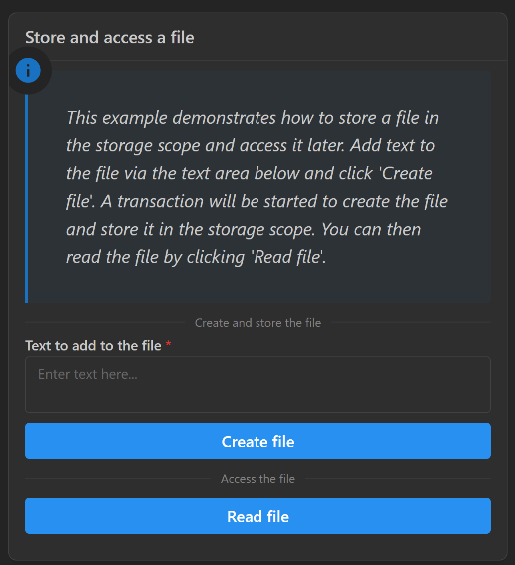
Store a file in the storage scope from a transaction method and read it back from the frontend.
Copy and modify an existing blob, then store the new version.
Store a whole directory and access its content.
Store a file uploaded from the UI and display it back.
Read a method asset shipped with a transaction method.
When you complete this example, you can expect the following output in the solution UI:
Prerequisites#
The BDM feature is provided in the GLOW Engine package, which is available by default in any SAF-based solution.
Coding#
To manage blobs in a solution, work through the following sequence of sections.
Backend#
Create the solution definition.
Key concept — Entity handle
An EntityHandle is a reference to a blob managed by BDM. It is an immutable value:
the blob it points to is never modified in place. To change the content, copy the blob, edit
the copy, and store it to obtain a new handle.
Declare the blob fields
Declare one EntityHandle field per blob the step has to reference. The NO_ENTITY
default value means that the field does not reference any blob yet.
class FileHandlingStep(StepModel):
    """File handling step model."""

    my_file_handle: EntityHandle = NO_ENTITY
    my_directory_handle: EntityHandle = NO_ENTITY
    my_uploaded_file_handle: EntityHandle = NO_ENTITY
Key concept — Storage scope
The storage scope is the working area of BDM. get_storage_root() returns the directory
where blobs are staged, and store() turns a staged file or directory into an
EntityHandle. The backend reaches it through self.storage_scope and the frontend
through project.storage_scope.
Store a file
The store_my_file_handle transaction method writes a text file in the storage root, stores it,
and assigns the resulting handle to the my_file_handle field. The content of the file is passed
from the frontend as a method argument.
@transaction(self=StepSpec(upload=["my_file_handle"]))
def store_my_file_handle(self, text: str) -> None:
    """Store a file in the storage scope."""
    filepath = self.storage_scope.get_storage_root() / "my_file.txt"
    filepath.write_text(text)
    self.my_file_handle = self.storage_scope.store(filepath)
Store a directory
The store_my_directory_handle transaction method creates a nested directory structure under
the storage root, writes a file in it, and stores the whole directory as a single handle.
@transaction(self=StepSpec(upload=["my_directory_handle"]))
def store_my_directory_handle(self, relative_path: str, text: str):
    """Store a directory in the storage scope."""
    relative_path_stripped = str(Path(relative_path).parent).lstrip("\\/")
    dirpath = self.storage_scope.get_storage_root() / relative_path_stripped
    dirpath.mkdir(parents=True, exist_ok=True)
    file_name = Path(relative_path).name
    (dirpath / file_name).write_text(text)
    self.my_directory_handle = self.storage_scope.store(dirpath)
Key concept — Method asset
A method asset is a file shipped with a transaction method. It is resolved at run time with
self.transaction.get_asset_entity_handle(), which returns an EntityHandle you read like
any other blob.
Read a method asset
The access_and_use_method_asset_file transaction method reads the my_asset.txt asset and
sends its content to the frontend as an event.
@transaction(self=StepSpec())
def access_and_use_method_asset_file(self) -> None:
    """Access an asset file in a transaction and send its content as an event."""
    asset_handle = self.transaction.get_asset_entity_handle("my_asset.txt")
    asset_content = self.storage_scope.get_text(asset_handle)
    self.transaction.raise_event(message=asset_content, stream_name="my-stream")
Frontend#
Expose the solution definition in the UI. Each use case described in the following sections is one card of the file handling page.
Key concept — Callback
A callback is a Dash-decorated function that fires in response to a UI event. In a
SAF solution, callbacks reach the backend through project.steps.<step_name>, read or
write fields, and invoke transaction methods. No manual HTTP calls are needed.
Use case 1: Store and access a file#
Let the user type the content of a text file, create the file in the backend, and read it back.
Build the card
The card holds a text area for the content of the file and two buttons: one to create the file and one to read it back.
store_and_access_a_file_card = dmc.Card(
    children=[
        dmc.CardSection(
            dmc.Text("Store and access a file", fw=500, style={"font-size": "17px"}),
            withBorder=True,
            inheritPadding=True,
            py="xs",
        ),
        dmc.Space(h=10),
        dmc.Blockquote(
            "This example demonstrates how to store a file in the storage scope and access it later. "
            "Add text to the file via the text area below and click 'Create file'. "
            "A transaction will be started to create the file and store it in the storage scope. "
            "You can then read the file by clicking 'Read file'.",
            icon=DashIconify(icon="material-symbols:info", width=30),
            style={"font-size": "18px", "fontStyle": "italic"},
        ),
        dmc.Space(h=10),
        dmc.Divider(label="Create and store the file"),
        dmc.Textarea(
            label="Text to add to the file",
            placeholder="Enter text here...",
            autosize=True,
            minRows=2,
            required=True,
            id="create-file-text-area-1",
        ),
        dmc.Space(h=10),
        dmc.Button(
            "Create file",
            id="create-file-button-1",
            style={"font-size": "16px", "background-color": "#2790F1"},
        ),
        dmc.Space(h=10),
        dmc.Divider(label="Access the file"),
        dmc.Space(h=10),
        dmc.Button(
            "Read file",
            id="read-file-button-1",
            style={"font-size": "16px", "background-color": "#2790F1"},
        ),
        dmc.Space(h=10),
        html.Div(
            id="file-content-1",
            style={"maxHeight": "600px", "width": "100%", "overflowY": "scroll"},
        ),
    ],
    withBorder=True,
    shadow="sm",
    radius="md",
    style={"width": 500},
)
Create the file
The callback of the Create file button invokes the store_my_file_handle transaction method
with the text entered by the user and reports the outcome through a notification.
@callback(
    Output("notifications-container", "children"),
    Input("create-file-button-1", "n_clicks"),
    State("create-file-text-area-1", "value"),
    State("url", "pathname"),
    prevent_initial_call=True,
)
def create_file(n_clicks: int, text: str, project: ExamplesSolution) -> str:
    """Create a file with the given text."""
    try:
        project.steps.file_handling_step.store_my_file_handle(text=text)
        title, icon, message = "Success", "ep:success-filled", f"File created successfully."
    except Exception as e:
        title, icon, message = "Error", "material-symbols:error", f"Failed to create file: {str(e)}"

    return dmc.Notification(
        title=title,
        message=message,
        icon=DashIconify(icon=icon),
        action="show",
        id="create-file-notification",
    )
Read the file
The callback of the Read file button resolves the my_file_handle field with
storage_scope.get_text() and displays the content of the blob.
@callback(
    Output("notifications-container", "children"),
    Output("file-content-1", "children"),
    Input("read-file-button-1", "n_clicks"),
    State("url", "pathname"),
    prevent_initial_call=True,
)
def read_file(n_clicks: int, project: ExamplesSolution) -> str:
    """Read the file created in the storage scope."""
    content = ""
    try:
        storage_scope = project.storage_scope
        content = storage_scope.get_text(project.steps.file_handling_step.my_file_handle)
        title, icon, message = "Success", "ep:success-filled", f"File read successfully."
    except Exception as e:
        title, icon, message = "Error", "material-symbols:error", f"Failed to read file: {str(e)}"

    return (
        dmc.Notification(
            title=title,
            message=message,
            icon=DashIconify(icon=icon),
            action="show",
            id="read-file-notification",
        ),
        html.Div(
            [
                html.Pre(
                    content,
                    style={"whiteSpace": "pre-wrap", "wordBreak": "break-all", "fontSize": "10px"},
                )
            ]
        ),
    )
Use case 2: Access and modify a file#
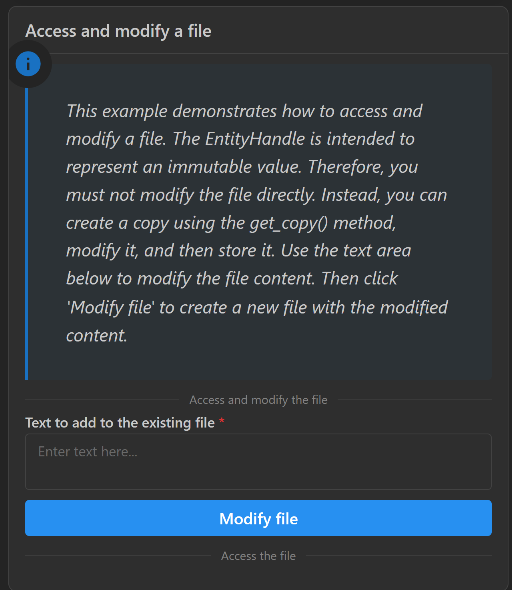
Extend the previous use case so the user can append text to the file that is already stored. The edit takes place entirely in the frontend, so no backend code is needed.
Build the card
The card holds a text area for the text to append and a button that triggers the modification.
modifiy_file_card = dmc.Card(
    children=[
        dmc.CardSection(
            dmc.Text("Access and modify a file", fw=500, style={"font-size": "17px"}),
            withBorder=True,
            inheritPadding=True,
            py="xs",
        ),
        dmc.Space(h=10),
        dmc.Blockquote(
            "This example demonstrates how to access and modify a file. "
            "The EntityHandle is intended to represent an immutable value. "
            "Therefore, you must not modify the file directly. "
            "Instead, you can create a copy using the get_copy() method, modify it, and then store it. "
            "Use the text area below to modify the file content. "
            "Then click 'Modify file' to create a new file with the modified content. ",
            icon=DashIconify(icon="material-symbols:info", width=30),
            style={"font-size": "18px", "fontStyle": "italic"},
        ),
        dmc.Space(h=10),
        dmc.Divider(label="Access and modify the file"),
        dmc.Textarea(
            label="Text to add to the existing file",
            placeholder="Enter text here...",
            autosize=True,
            minRows=2,
            required=True,
            id="modify-file-text-area-2",
        ),
        dmc.Space(h=10),
        dmc.Button(
            "Modify file",
            id="modify-file-button-2",
            style={"font-size": "16px", "background-color": "#2790F1"},
        ),
        dmc.Space(h=10),
        dmc.Divider(label="Access the file"),
        dmc.Space(h=10),
        html.Div(
            id="file-content-2",
            style={"maxHeight": "600px", "width": "100%", "overflowY": "scroll"},
        ),
    ],
    withBorder=True,
    shadow="sm",
    radius="md",
    style={"width": 500},
)
Modify the file
Because an EntityHandle is immutable, the callback copies the blob with
storage_scope.get_copy(), edits the copy, and stores it again. The my_file_handle field is
then updated with the new handle.
@callback(
    Output("notifications-container", "children"),
    Output("file-content-2", "children"),
    Input("modify-file-button-2", "n_clicks"),
    State("modify-file-text-area-2", "value"),
    State("url", "pathname"),
    prevent_initial_call=True,
)
def modify_file(n_clicks: int, text: str, project: ExamplesSolution) -> str:
    """Create a file with the given text."""
    content = ""
    try:
        storage_scope = project.storage_scope
        root = storage_scope.get_storage_root()
        new_file = root / "modified_file.txt"
        storage_scope.get_copy(project.steps.file_handling_step.my_file_handle, new_file)
        content = new_file.read_text()
        content += "\n" + text
        new_file.write_text(content)
        project.steps.file_handling_step.my_file_handle = storage_scope.store(new_file)
        title, icon, message = "Success", "ep:success-filled", f"File modified successfully."
    except Exception as e:
        title, icon, message = "Error", "material-symbols:error", f"Failed to modify file: {str(e)}"

    return (
        dmc.Notification(
            title=title,
            message=message,
            icon=DashIconify(icon=icon),
            action="show",
            id="modify-file-notification",
        ),
        html.Div(
            [
                html.Pre(
                    content,
                    style={"whiteSpace": "pre-wrap", "wordBreak": "break-all", "fontSize": "10px"},
                )
            ]
        ),
    )
Use case 3: Store and access directory content#
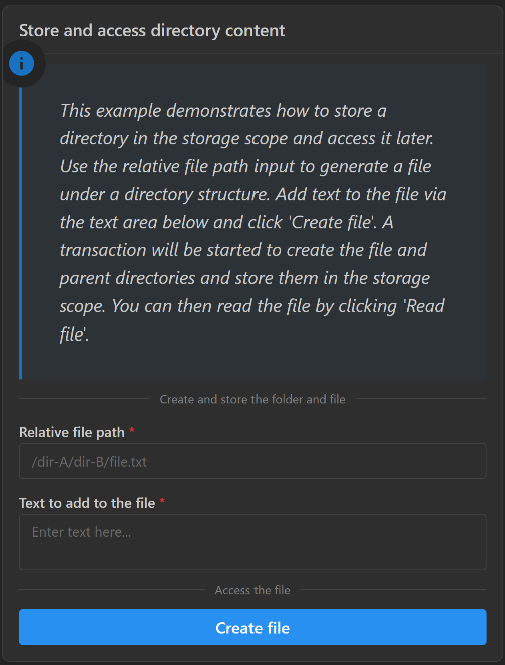
Let the user define a relative file path and its content, then store the whole directory structure in the storage scope.
Build the card
The card holds a text input for the relative path of the file, a text area for its content, and a button that triggers the creation of the directory structure.
store_and_access_a_directory_card = dmc.Card(
    children=[
        dmc.CardSection(
            dmc.Text("Store and access directory content", fw=500, style={"font-size": "17px"}),
            withBorder=True,
            inheritPadding=True,
            py="xs",
        ),
        dmc.Space(h=10),
        dmc.Blockquote(
            "This example demonstrates how to store a directory in the storage scope and access it later. "
            "Use the relative file path input to generate a file under a directory structure. "
            "Add text to the file via the text area below and click 'Create file'. "
            "A transaction will be started to create the file and parent directories and store them in "
            "the storage scope. You can then read the file by clicking 'Read file'.",
            icon=DashIconify(icon="material-symbols:info", width=30),
            style={"font-size": "18px", "fontStyle": "italic"},
        ),
        dmc.Space(h=10),
        dmc.Divider(label="Create and store the folder and file"),
        dmc.Space(h=10),
        dmc.TextInput(
            label="Relative file path",
            required=True,
            placeholder="/dir-A/dir-B/file.txt",
            id="file-path-input",
        ),
        dmc.Space(h=10),
        dmc.Textarea(
            label="Text to add to the file",
            placeholder="Enter text here...",
            autosize=True,
            minRows=2,
            required=True,
            id="create-file-text-area-5",
        ),
        dmc.Space(h=10),
        dmc.Divider(label="Access the file"),
        dmc.Space(h=10),
        dmc.Button(
            "Create file",
            id="create-file-button-5",
            style={"font-size": "16px", "background-color": "#2790F1"},
        ),
    ],
    withBorder=True,
    shadow="sm",
    radius="md",
    style={"width": 500},
)
Create the directory
The callback of the Create file button invokes the store_my_directory_handle transaction
method with the relative path and the content entered by the user.
@callback(
    Output("notifications-container", "children"),
    Input("create-file-button-5", "n_clicks"),
    State("file-path-input", "value"),
    State("create-file-text-area-5", "value"),
    State("url", "pathname"),
    prevent_initial_call=True,
)
def create_directory(n_clicks: int, relative_path: str, text: str, project: ExamplesSolution) -> str:
    """Create a file with the given text."""
    try:
        project.steps.file_handling_step.store_my_directory_handle(relative_path=relative_path, text=text)
        title, icon, message = "Success", "ep:success-filled", f"Directory created successfully."
    except Exception as e:
        title, icon, message = "Error", "material-symbols:error", f"Failed to create directory: {str(e)}"

    return dmc.Notification(
        title=title,
        message=message,
        icon=DashIconify(icon=icon),
        action="show",
        id="trigger-transaction-notification",
    )
Use case 4: Store a file uploaded from the frontend#
Let the user upload a file from the UI and store it in the storage scope. As in use case 2, the whole workflow runs in the frontend, so no backend code is needed.
Build the card
The card holds a dcc.Upload component that accepts a PNG file and a dmc.Image component
that displays the stored image.
store_uploaded_file_from_ui = dmc.Card(
    children=[
        dmc.CardSection(
            dmc.Text("Store uploaded image", fw=500, style={"font-size": "17px"}),
            withBorder=True,
            inheritPadding=True,
            py="xs",
        ),
        dmc.Space(h=10),
        dmc.Blockquote(
            "This example shows how to store a file (.png) uploaded from the UI. "
            "Use the upload component below to select an image file. "
            "The selected image will be stored in the storage scope and displayed below.",
            icon=DashIconify(icon="material-symbols:info", width=30),
            style={"font-size": "18px", "fontStyle": "italic"},
        ),
        dmc.Space(h=10),
        dcc.Upload(
            id="upload-file",
            multiple=False,
            accept=".png",
            children=html.Div(
                "Drag and drop or click to select an image to upload",
            ),
            style={
                "width": "100%",
                "height": "60px",
                "lineHeight": "60px",
                "borderWidth": "1px",
                "borderStyle": "dashed",
                "borderRadius": "5px",
                "textAlign": "center",
                "margin": "10px",
            },
        ),
        dmc.Space(h=10),
        dmc.Image(id="uploaded-image", fallbackSrc="Placeholder"),
    ],
    withBorder=True,
    shadow="sm",
    radius="md",
    style={"width": 500},
)
Store the uploaded file
The callback decodes the uploaded content, writes it in the storage root, and stores it. The URL
returned by get_entity_url() is the source of the image component, so the stored blob is
served directly to the browser.
@callback(
    Output("uploaded-image", "src"),
    Input("upload-file", "contents"),
    State("upload-file", "filename"),
    State("url", "pathname"),
    prevent_initial_call=True,
)
def upload_file(contents: str, filename: str, project: ExamplesSolution) -> str:
    """Create a file with the given text."""
    content_type, content_string = contents.split(",")
    content = base64.b64decode(content_string)
    storage_scope = project.storage_scope
    filepath = storage_scope.get_storage_root() / filename
    filepath.write_bytes(content)
    project.steps.file_handling_step.my_uploaded_file_handle = storage_scope.store(filepath)
    return project.steps.file_handling_step.get_entity_url("my_uploaded_file_handle")
Use case 5: Read a method asset#
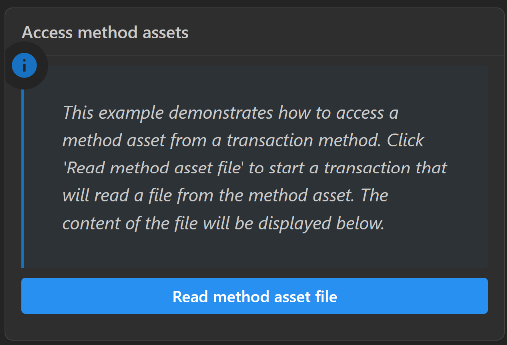
Read a file shipped with a transaction method and push its content to the UI through an event.
Build the card
The card holds a button that starts the transaction and a container that displays the content of the asset.
access_method_assets_card = dmc.Card(
    children=[
        dmc.CardSection(
            dmc.Text("Access method assets", fw=500, style={"font-size": "17px"}),
            withBorder=True,
            inheritPadding=True,
            py="xs",
        ),
        dmc.Space(h=10),
        dmc.Blockquote(
            "This example demonstrates how to access a method asset from a transaction method. "
            "Click 'Read method asset file' to start a transaction that will read a file from the method asset. "
            "The content of the file will be displayed below. ",
            icon=DashIconify(icon="material-symbols:info", width=30),
            style={"font-size": "18px", "fontStyle": "italic"},
        ),
        dmc.Space(h=10),
        dmc.Button(
            "Read method asset file",
            id="read-file-button-2",
            style={"font-size": "16px", "background-color": "#2790F1"},
        ),
        dmc.Space(h=10),
        html.Div(
            id="file-content-3",
            style={"maxHeight": "600px", "width": "100%", "overflowY": "scroll"},
        ),
    ],
    withBorder=True,
    shadow="sm",
    radius="md",
    style={"width": 500},
)
Start the transaction
The callback of the Read method asset file button invokes the
access_and_use_method_asset_file transaction method.
@callback(
    Output("notifications-container", "children"),
    Input("read-file-button-2", "n_clicks"),
    State("url", "pathname"),
    prevent_initial_call=True,
)
def trigger_transaction_with_method_assets(n_clicks: int, project: ExamplesSolution) -> str:
    """Create a file with the given text."""
    try:
        project.steps.file_handling_step.access_and_use_method_asset_file()
        title, icon, message = "Success", "ep:success-filled", f"Transaction started successfully."
    except Exception as e:
        title, icon, message = "Error", "material-symbols:error", f"Failed to start transaction: {str(e)}"

    return dmc.Notification(
        title=title,
        message=message,
        icon=DashIconify(icon=icon),
        action="show",
        id="trigger-transaction-notification",
    )
Display the content of the asset
The transaction raises an event instead of writing a field. A second callback listens to the event listener registered in the layout and renders the message it carries.
@callback(
    Output("file-content-3", "children"),
    Input("ws", "message"),
    prevent_initial_call=True,
)
def display_method_asset_content(message: dict) -> str:
    """Create a file with the given text."""
    content = message["data"].strip('"').replace("\\n", "\n")
    return content
Now that your implementation is complete, continue to the Testing section.
Testing#
Finally, test your implementation to confirm it works as expected.
Run the solution and compare your results with the results shown in the Feature highlight section.