

Archive a solution#
A solution archive is a single file that contains all of the source code for a solution. It is created in the .saf format and can be used to share a solution or back up its source code.
You can create a solution archive with the saf archive command in either SAF CLI or Solutions Manager.
Use SAF CLI to create a solution archive with default values:
saf archive <solution_name>
saf archive minimal-solution
Create a solution archive with Solutions Manager:
Open the solution’s root directory in Visual Studio Code.
In the Activity Bar, click the Solutions Manager icon.
In the Solutions Manager panel, expand the Archive Solution view:
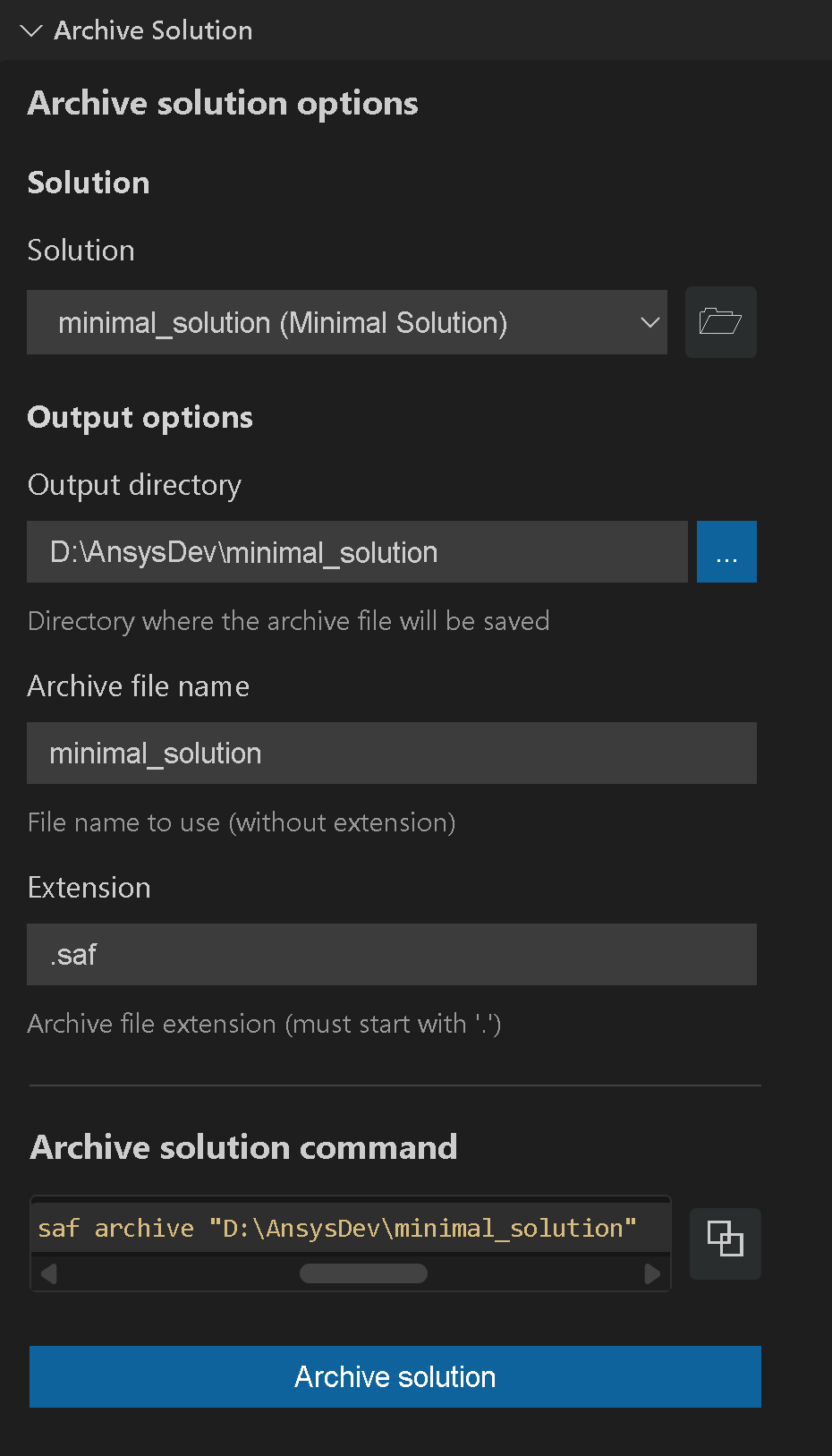
Fill out the following values:
The Solution field is populated with the name of the open solution. Optionally, you can select a different solution to archive.
To change your selection, select an available solution from the list or browse to a different solution folder. Values in the related fields update automatically.
Select the output directory for the archive.
By default, the output directory is the current working directory. Browse to a different folder or enter the path manually.
Important
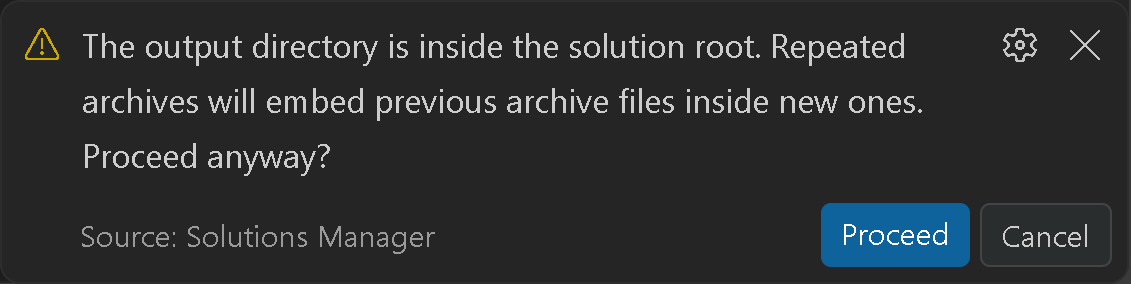
If you leave the default output directory unchanged, Solutions Manager displays a warning. We recommend changing the path. Saving the archive in the solution’s root folder can cause each new archive to include the previous archive file, which can make the solution difficult to extract.
The Archive file name field is populated with the name of the open solution. Optionally, you can enter a different value.
The Extension field is populated with the default extension
.saf. Optionally, you can enter a different value.
Generate the archive file.
Click the Archive solution button. Alternatively, you can copy the command under Archive solution command and run it in the terminal.
A confirmation message appears when the archive is created successfully.
Result
When the solution archive file is created:
The archive is named with the solution name and placed in the specified output directory.
If an archive with the same name exists on the path, it is overwritten.
The archive includes all the solution code but does not include existing projects.
Note
Archiving a solution does not remove it from the solutions registry and does not delete any files. To completely delete a solution, you must manually remove the files from your file system.
See also
For information on how to run an archived solution, see Run an archived solution.
SAF archive command options#
The saf archive command has several options. To see them all, run the following command:
saf archive --help
The following saf archive options are available:
Option |
Description |
|---|---|
|
Specifies the name of the archive file to create. If not provided, then the solution name is used. |
|
Specifies the extension (with the period) of the archive file to create. If not provided, then |
|
Specifies the path to save the solution. If not provided, the current working directory is used. |
SAF archive command example#
This example shows how to use SAF CLI to create a solution archive with specified values.
saf archive <solution_name_or_path> --path <output_directory> --filename <archive_filename> --extension <archive_extension>
saf archive "D:\AnsysDev\Solutions-Manager-Doc-Migration\minimal_solution" --path "d:\AnsysDev\archived_solutions" --filename "archived_minimal_solution" --extension .archive