
Configuration#
Environment variables#
The following environment variables are used to configure the Product Instance Management system used by SAF GLOW Engine to launch and manage product instances.
GLOW_PRODUCT_INSTANCE_SYSTEM: Specifies the Product Instance Management system to use. Possible values arePIMfor PIM Light Server andHPSfor HPC Platform Services. Default isPIM.GLOW_PRODUCT_INSTANCE_SYSTEM_HOST: Host where the Product Instance Management system is running. Default islocalhost.GLOW_PRODUCT_INSTANCE_SYSTEM_PORT: Port where the Product Instance Management system is running. There is no default.GLOW_PIM_SOCKET_PATH: Path to the UNIX socket file used to connect to PIM Light Server. Only used whenGLOW_PRODUCT_INSTANCE_SYSTEMis set toPIM,GLOW_PRODUCT_INSTANCE_SYSTEM_HOSTis localhost and it’s running on Linux. There is no default.ANSYS_GRPC_CERTIFICATES: Path to the directory where the gRPC certificates used by PIM Light Server are stored. Only used whenGLOW_PRODUCT_INSTANCE_SYSTEMis set toPIMandGLOW_PRODUCT_INSTANCE_SYSTEM_HOSTis not localhost, no matter the operating system. There is no default.GLOW_PRODUCT_HOST: Host where the product instances are running. It is the address used to connect to the product instance from outside. Default islocalhost.GLOW_PRODUCT_BINDING_HOST: Host to which the product instances is bound. It is the address where the product instance is listening for connections. Default is0.0.0.0for insecure product configurations, otherwise it’slocalhost.GLOW_PRODUCT_INSTANCE_SYSTEM_PROJECT_FILES_DIRECTORY: Path to the project files directory as seen from the Product. Required when the GLOW API server and the Product are running in different systems or containers. Defaults to the value of GLOW_PROJECT_FILES_DIRECTORY, assuming that both have access to the same filesystem.GLOW_PROJECT_FILES_DIRECTORY: Path to the project files directory as seen from the GLOW API server. Defaults to a platform-specific application data directory.GLOW_PRODUCT_INSTANCE_SYSTEM_PLATFORM: Platform type where the Product is running. Possible values areWindowsandLinux. Required when the GLOW API server and the Product are running in different systems or containers. Defaults to the same platform as the GLOW API server.
See Environment variables for a detailed list of GLOW configuration options.
Important
When the GLOW API Server and the Product Instance Management service are running in different systems or containers, it is mandatory that both, GLOW API server and the Product Instance Management service have access to a shared volume for the project files.
Note
SAF GLOW Engine does not launch or orchestrate the execution of the Product Instance Management service. The following configuration assumes that the service is running. For orchestrating all the services required for running a solution, including SAF GLOW Engine itself, refer to the projects SAF Desktop and SAF On-Prem.
Note
None of the configurations below take HPS Authentication into account. See HPS authentication for more details on how to configure HPS Authentication.
Common deployment scenarios#
Solution on desktop using SAF Desktop Orchestrator#
Solution and PIM Light Server in same Windows OS#
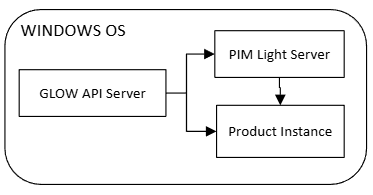
This is the most common one, for example when using saf run in development mode or with an installed solution when executed through the shortcut.
In this case, you don’t need to configure anything. The only environment variable that doesn’t have a default is GLOW_PRODUCT_INSTANCE_SYSTEM_PORT and SAF Desktop Orchestrator will take care of that. The rest of defaults values are valid.
If you still want to set it manually, you can do it as follows, setting a $PIM_PORT (for example, 8555) in your solution’s .env file:
GLOW_PRODUCT_INSTANCE_SYSTEM_PORT = "8555" # SAF Desktop Orchestrator will launch PIM Light Server listening on this port and the SAF GLOW Engine API server will connect to it.
Solution and PIM Light Server in same Linux OS#
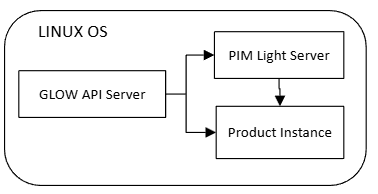
This is the equivalent to the previous one, but on Linux.
In this case, you don’t need to configure anything. UNIX sockets are used instead of ports, so trying to set the GLOW_PRODUCT_INSTANCE_SYSTEM_PORT as in Windows will result in warning log messages. Socket paths are automatically created and set to GLOW_PIM_SOCKET_PATH by SAF Desktop Orchestrator. Manually setting this environment variable will be ignored or may cause malfunctioning.
Solution and HPS in same Linux OS#
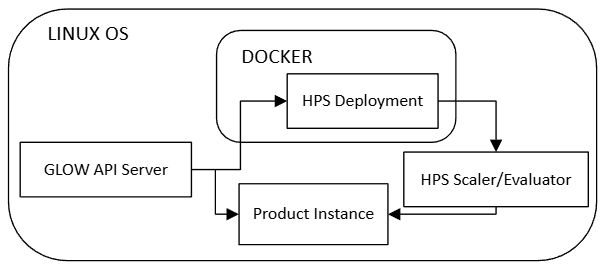
This will make SAF Desktop Orchestrator to avoid launching PIM Light server.
It requires a running HPS cluster in the same Linux system with HPS deployment listening on localhost and $HPS_PORT (for example, 8443),
Then, set the following environment variables in your solution’s .env file:
GLOW_PRODUCT_INSTANCE_SYSTEM = "HPS"
GLOW_PRODUCT_INSTANCE_SYSTEM_PORT = "8443"
Solution and HPS scaler/evaluator in same Windows OS, HPS Deployment in WSL#
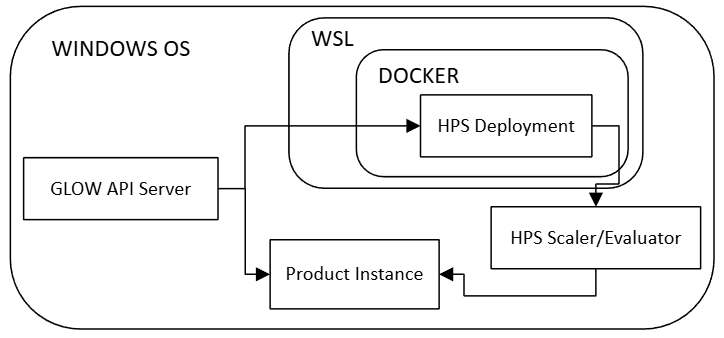
This will make SAF Desktop Orchestrator to avoid launching PIM Light server.
It requires a running HPS deployment in WSL listening on localhost and $HPS_PORT (for example, 8443), and a running HPS scaler/evaluator in the Windows host alongside the Solution.
Then, set the following environment variables in your solution’s .env file:
GLOW_PRODUCT_INSTANCE_SYSTEM = "HPS"
GLOW_PRODUCT_INSTANCE_SYSTEM_PORT = "8443"
HPS authentication#
A solution derived from the SAF CLI template and deployed into the SAF platform builder environment will automatically authenticate with HPS using the current user’s identity. A solution derived from the SAF CLI template and deployed as a windows application will trigger an interactive login flow in the user’s browser to authenticate with HPS the first time the solution executes the HPS API.
Read more about HPS authentication here.
Solution in Docker containers#
Solution and PIM Light Server in same Linux OS#
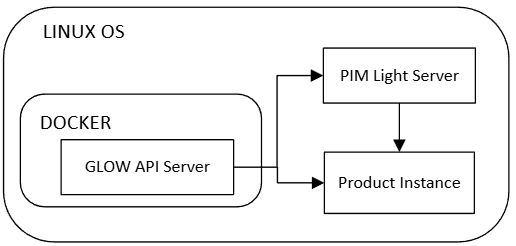
Requires to mount 2 directories, $PROJECT_FILES_DIR (for example, /home/my_user/project_files) and $GRPC_CERTS_DIR (for example, /home/my_user/my_certificates) into the GLOW API server container as follows:
Project files:
/home/my_user/project_files:/project_filesgRPC certificates:
/home/my_user/my_certificates:/grpc_certificates
It requires a running PIM Light server on the Linux host, listening on the docker IP (you can find it executing ifconfig docker0 on the Linux host), port $PIM_PORT (for example, 8555) and with certificates pointing to $GRPC_CERTS_DIR (for example, /home/my_user/my_certificates). For example, using the arguments --transport-mode=MTLS --urls=https://172.17.0.1:8555 --certs-dir=/home/my_user/my_certificates
Then, set the following environment variables in the Solution API container:
GLOW_PRODUCT_INSTANCE_SYSTEM_HOST = (
    "host.docker.internal"  # to connect to PIM Light Server from within the Solution API container
)
GLOW_PRODUCT_INSTANCE_SYSTEM_PORT = "8555"
GLOW_PROJECT_FILES_DIRECTORY = "/project_files"  # project files dir within the container, accessible by GLOW API server
GLOW_PRODUCT_INSTANCE_SYSTEM_PROJECT_FILES_DIRECTORY = (
    "/home/my_user/project_files"  # project files dir outside the container, accessible by Product
)
GLOW_PRODUCT_HOST = "host.docker.internal"  # to connect to the Product from within the Solution API container
ANSYS_GRPC_CERTIFICATES = (
    "/my_certificates"  # gRPC certificates dir within the container, accessible by GLOW API server
)

# (Optional but needed to use secure connection for gRPC products)
GLOW_PRODUCT_BINDING_HOST = "172.17.0.1"  # The docker IP that is resolved from host.docker.internal
Solution and HPS in same Linux OS#
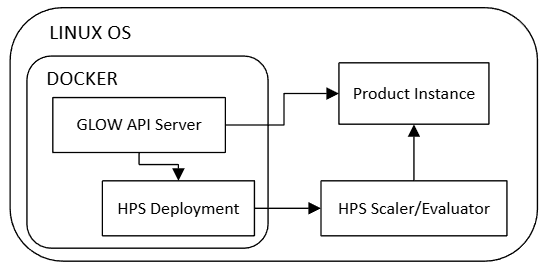
Requires to mount 1 directory, $PROJECT_FILES_DIR (for example, /home/my_user/project_files) into the GLOW API server container as follows:
Project files:
/home/my_user/project_files:/project_files
It requires a running HPS cluster in the same Linux system with HPS deployment listening on the Linux host IP (you can find it executing ifconfig eth0 on the Linux host) and $HPS_PORT (for example, 8443), and in the process that launches the HPS scaler/evaluator, you must configure the GLOW_PRODUCT_HOST:
GLOW_PRODUCT_HOST = "host.docker.internal"  # to connect to the Product from within the Solution API container

# (Optional but needed to use secure connection for gRPC products)
GLOW_PRODUCT_BINDING_HOST = "172.17.0.1"  # The docker IP that is resolved from host.docker.internal
Then, the environment variables in the Solution API container:
GLOW_PRODUCT_INSTANCE_SYSTEM = "HPS"
GLOW_PRODUCT_INSTANCE_SYSTEM_HOST = (
    "host.docker.internal"  # to connect to HPS deployments from within the Solution API container
)
GLOW_PRODUCT_INSTANCE_SYSTEM_PORT = "8443"
GLOW_PROJECT_FILES_DIRECTORY = "/project_files"  # project files dir within the container, accessible by GLOW API server
GLOW_PRODUCT_INSTANCE_SYSTEM_PROJECT_FILES_DIRECTORY = (
    "/home/my_user/project_files"  # project files dir outside the container, accessible by Product
)
Solution in WSL and PIM Light server in Windows host#
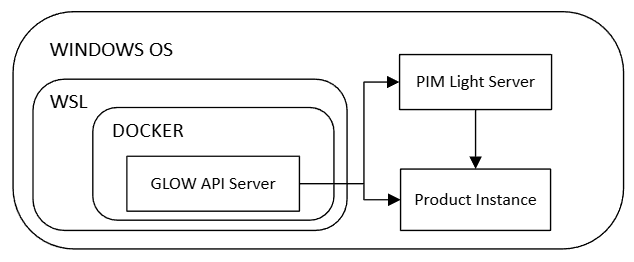
Requires to mount 2 directories, $PROJECT_FILES_DIR (for example, C:/Users/my_user/project_files accessible in WSL as /mnt/c/Users/my_user/project_files) and $GRPC_CERTS_DIR (for example, C:/Users/my_user/my_certificates accessible in WSL as /mnt/c/Users/my_user/my_certificates) into the GLOW API server container as follows:
Project files:
/mnt/c/Users/my_user/project_files:/project_filesgRPC certificates:
/mnt/c/Users/my_user/my_certificates:/my_certificates
It requires a running PIM Light server on the Windows host listening on the IP of the Windows host as seen from WSL (you can find it executing ipconfig on the Windows host and looking for the IP in vEthernet (WSL) adapter, for example, 172.23.80.1) and port $PIM_PORT (for example, 8555) and with certificates pointing to $GRPC_CERTS_DIR (for example, C:/Users/my_user/my_certificates). For example, using the arguments --transport-mode=MTLS --urls=https://172.23.80.1:8555 --certs-dir=C:/Users/my_user/my_certificates.
Then, the environment variables in the Solution API container:
GLOW_PRODUCT_INSTANCE_SYSTEM_HOST = "172.23.80.1"  # to connect to the PIM Light Server running in the Windows host from within the Solution API container in WSL.
GLOW_PRODUCT_INSTANCE_SYSTEM_PORT = "8555"
GLOW_PROJECT_FILES_DIRECTORY = "/project_files"  # project files dir within the container, accessible by GLOW API server
GLOW_PRODUCT_INSTANCE_SYSTEM_PLATFORM = "Windows"  # OS where the Product is running
GLOW_PRODUCT_INSTANCE_SYSTEM_PROJECT_FILES_DIRECTORY = (
    "C:/Users/my_user/project_files"  # project files dir outside the container, accessible by Product
)
GLOW_PRODUCT_HOST = "172.23.80.1"  # to connect to the Product running in the Windows host from within the Solution API container in WSL.
ANSYS_GRPC_CERTIFICATES = "/my_certificates"
Solution and HPS Deployments in same WSL, HPS evaluator/scaler in Windows host#
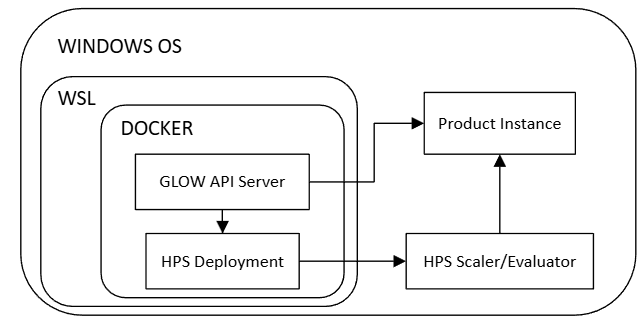
Requires to mount 1 directory, $PROJECT_FILES_DIR (for example, C:/Users/my_user/project_files accessible in WSL as /mnt/c/Users/my_user/project_files) into the GLOW API server container as follows:
Project files:
/mnt/c/Users/my_user/project_files:/project_files
It requires a running HPS deployment in WSL listening on the WSL IP (you can find it executing wsl hostname -I on the Windows host, for example, 172.23.83.220) and $HPS_PORT (for example, 8443), and a running HPS scaler/evaluator in the Windows host. In the process that launches this HPS scaler/evaluator, you must configure the GLOW_PRODUCT_HOST with the IP of the Windows host as seen from WSL (you can find it executing ipconfig on the Windows host and looking for the IP in vEthernet (WSL) adapter, for example, 172.23.80.1).
GLOW_PRODUCT_HOST = "172.23.80.1"  # to connect to the Product running in the Windows host from within the Solution API container in WSL.

# (Optional but needed to use secure connection for gRPC products)
GLOW_PRODUCT_BINDING_HOST = "172.23.80.1"  # to make the Product listening to connection reaching the Windows host.
Environment variables in the Solution API container:
GLOW_PRODUCT_INSTANCE_SYSTEM = "HPS"
GLOW_PRODUCT_INSTANCE_SYSTEM_HOST = "host.docker.internal"  # to connect to localhost (WSL) from within the Solution API container, since HPS Deployments is also running containerized in WSL.
GLOW_PRODUCT_INSTANCE_SYSTEM_PORT = "8443"
GLOW_PROJECT_FILES_DIRECTORY = "/project_files"  # project files dir within the container, accessible by GLOW API server
GLOW_PRODUCT_INSTANCE_SYSTEM_PLATFORM = "Windows"  # OS where the Product is running
GLOW_PRODUCT_INSTANCE_SYSTEM_PROJECT_FILES_DIRECTORY = (
    "C:/Users/my_user/project_files"  # project files dir outside the container, accessible by Product
)
Install extra dependencies#
To use the Product Instance Management functionality, you need to install the appropriate extras from ansys-saf-sdk.
This can be done by editing the ansys-saf-sdk dependency declaration in the pyproject.toml file of your solution as follows:
[tool.poetry.dependencies]
ansys-saf-sdk = {version = "^0.2.0", extras = ["core-pim"]}
The extras field specifies that you want to include the PIM-related dependencies.
[tool.poetry.dependencies]
ansys-saf-sdk = {version = "^0.2.0", extras = ["core-hps"]}
The extras field specifies that you want to include the HPS-related dependencies.
Once you have updated the dependency, run the following command to install the extra dependencies:
poetry lock --no-update
saf execute <solution-name> "poetry lock --no-update"
In addition, you also need to install the SDK (PyAnsys package) for the Ansys product you want to use with GLOW. Click on the tab corresponding to the product you want to use to see the required extra dependencies.
For AEDT add the aedt extra as follows:
[tool.poetry.dependencies]
ansys-saf-sdk = {version = "^0.2.0", extras = ["core-pim", "instance-management-aedt"]}
This will install the supported version of pyaedt to control the AEDT product instances. Note that in the above example,
the core-pim extra is specified, but if you are using HPS, you must use the core-hps extra instead.
For Fluent add the fluent extra as follows:
[tool.poetry.dependencies]
ansys-saf-sdk = {version = "^0.2.0", extras = ["core-pim", "instance-management-fluent"]}
This will install the supported version of ansys-fluent-core to control the Fluent product instances. Note that in the above example,
the core-pim extra is specified, but if you are using HPS, you must use the core-hps extra instead.
For Geometry add the geometry extra as follows:
[tool.poetry.dependencies]
ansys-saf-sdk = {version = "^0.2.0", extras = ["core-pim", "instance-management-geometry"]}
This will install the supported version of ansys-geometry-core to control the Geometry product instances. Note that in the above example,
the core-pim extra is specified, but if you are using HPS, you must use the core-hps extra instead.
For MAPDL add the mapdl extra as follows:
[tool.poetry.dependencies]
ansys-saf-sdk = {version = "^0.2.0", extras = ["core-pim", "instance-management-mapdl"]}
This will install the supported version of ansys-mapdl-core to control the MAPDL product instances. Note that in the above example,
the core-pim extra is specified, but if you are using HPS, you must use the core-hps extra instead.
For Mechanical add the mechanical extra as follows:
[tool.poetry.dependencies]
ansys-saf-sdk = {version = "^0.2.0", extras = ["core-pim", "instance-management-mechanical"]}
This will install the supported version of ansys-mechanical-core to control the Mechanical product instances. Note that in the above example,
the core-pim extra is specified, but if you are using HPS, you must use the core-hps extra instead.
For optiSLang add the optislang extra as follows:
[tool.poetry.dependencies]
ansys-saf-sdk = {version = "^0.2.0", extras = ["core-pim", "instance-management-optislang"]}
This will install the supported version of ansys-optislang-core to control the optiSLang product instances. Note that in the above example,
the core-pim extra is specified, but if you are using HPS, you must use the core-hps extra instead.