
Access execution logs#
This section describes how to create and access execution logs for both transaction methods and Dash UI callbacks.
Create and access method execution logs#
This section describes how to access the logging messages from transactions.
Log in a method#
Add the following import statement to modules with method code requiring logging.
import logging
Add calls to the logging package in the code executed by a method using a logger with the module name. For example:
logger = logging.getLogger(__name__)

logger.info(f"Data generated by my method: {my_data}")
Run the
saf runcommand.Logging occurs in installed solutions, as well as during development runs.
Note
Do not use the root logger, such as logging.warning() or logging.getLogger().warning(). See logging tutorial.
Access method execution logs#
You can find the transaction method execution logs in the OTel Dashboard.
The URL to this dashboard is shown in the saf run output, in a line starting with:
INFO - OTel Dashboard:
Opening the link, you can see all the messages generated by the solution (typically, under the GLOW API resource).
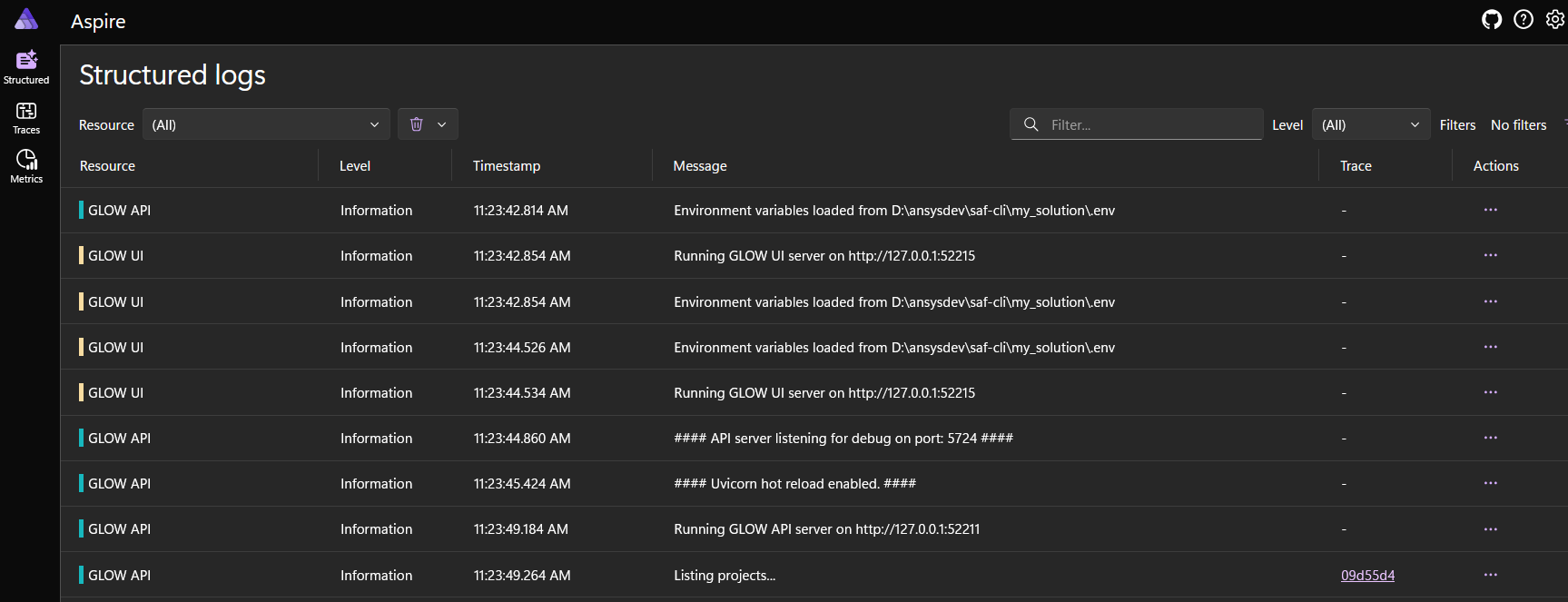
Within the Structured logs page, you can search and filter the logs by service, level, or message.
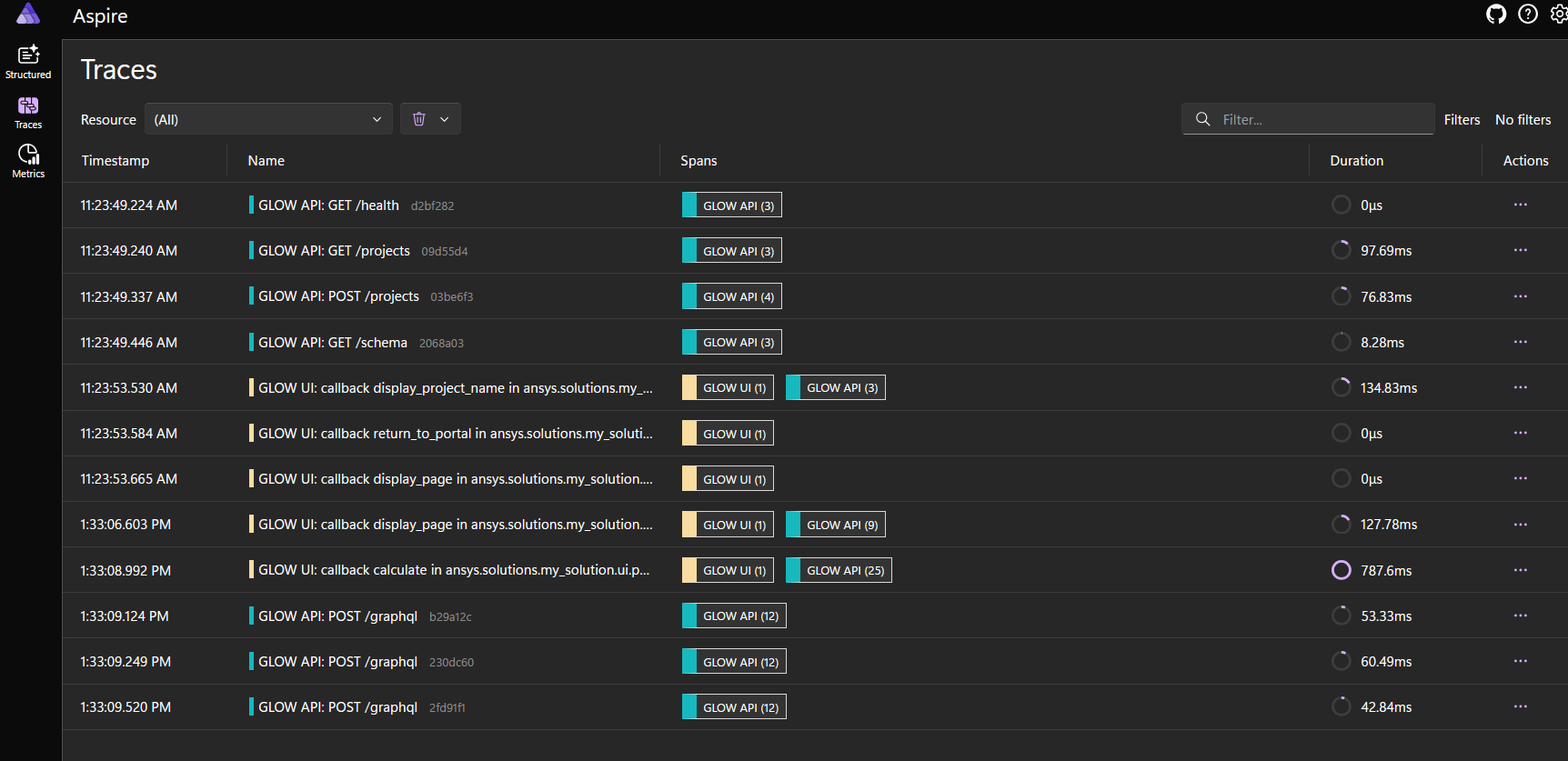
The Traces page gives you the ability to localize failures and performance issues across all applications. It also helps identifying how long different stages of the request took to complete.
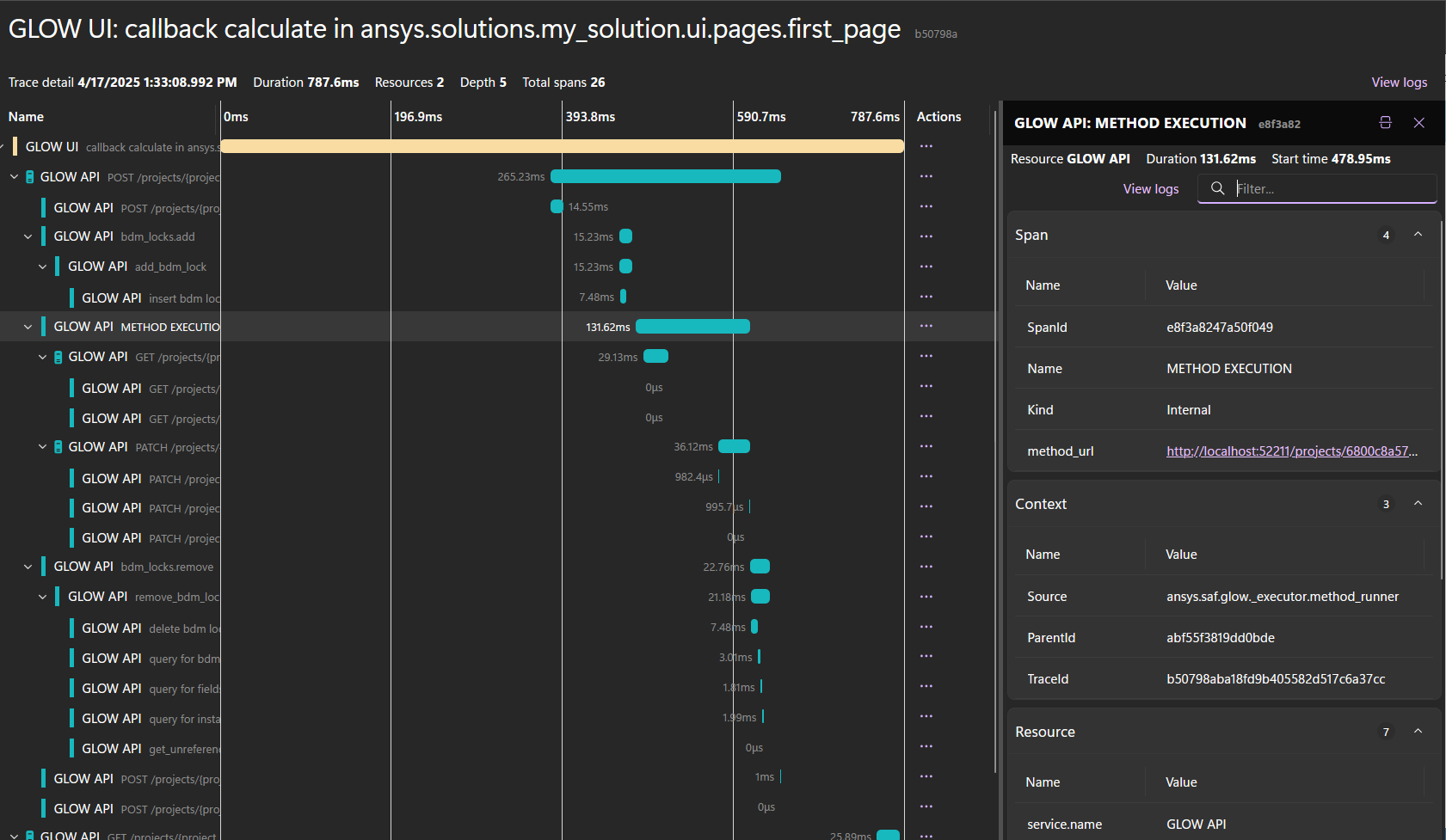
Note that you can see from which trace a specific log message is coming from by clicking on the Trace link in the Structured logs page.
Transaction methods are executed in an isolated environment. With SAF Desktop, this is a temporary directory which is deleted after the execution is complete.
Running the solution in debug mode actually retains those transaction method execution directories. You can find where those directories are by looking inside the GLOW API log. For example:
GLOW API - Executing method in C:\Users\test\AppData\Local\Temp\ansys_glow_0nd6aa44...
Note
If you prefer to access logs using files rather than the OTel Dashboard, you can use the saf run --log-to-files option.
The logs can then be accessed under $APPDATA/ansys/glow/<MySolution>/logs/.
Create and access Dash UI callback execution logs#
This section describes how to access the log messages from Dash UI callbacks.
Log in a Dash callback#
Add the following import statement to modules with method code requiring logging.
import logging
Replace Dash callback decorator with SAF GLOW Engine callback decorator.
Replace the following:
from ansys.saf.glow.client import DashClient
from dash_extensions.enrich import callback, Input, Output, State, dcc, html
With:
from ansys.saf.glow.client import DashClient, callback
from dash_extensions.enrich import Input, Output, State, dcc, html
This modification ensures that Dash callback executions are logged and traced appropriately.
Add calls to the logging package in the code executed by a callback using a logger with the module name. For example:
logger = logging.getLogger(__name__)

logger.info(f"Data generated by my method: {my_data}")
Run the
saf runcommand.
Logging occurs in installed solutions, as well as during development runs.
Note
Do not use the root logger, such as logging.warning() or logging.getLogger().warning(). See logging tutorial.
Access Dash UI logs#
Each user session has a UI log which covers all the solution interactions, including all the projects that the user interacts with during that session.
You can find the UI logs in the OTel Dashboard.
The URL to this dashboard is shown in the saf run output, in a line starting with:
INFO - OTel Dashboard: http://
When you open the link, you can see all the messages generated by the solution (typically, under the GLOW UI resource).
- started callback calculate in ansys.solutions.end_to_end_solution.ui.first_page
- accessing projects/6537c7b4f7862c21c53be35e
- test message inside callback
- completed callback calculate in ansys.solutions.end_to_end_solution.ui.first_page
Note
If you prefer to access logs using files rather than the OTel Dashboard, you can use the saf run --log-to-files option.
The logs can then be accessed under $APPDATA/ansys/glow/<MySolution>/logs/.